Portal Peek
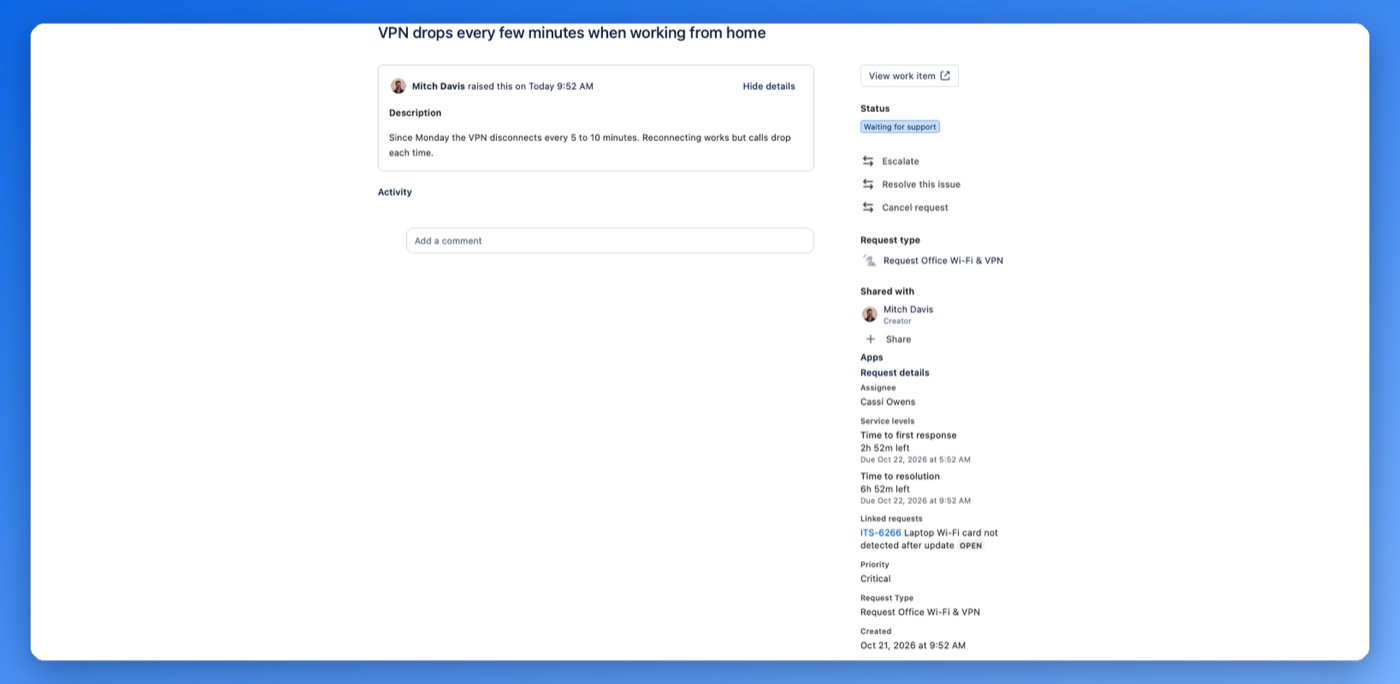
Adds a Request details panel to each request on the Jira Service Management customer portal.
- Shows customers who has their request.
- Shows the time left on each SLA, in working time, with the due time.
- Lists linked requests the customer can already open.
- Shows up to 20 fields you pick, read-only. Free.
Why
The portal doesn't show customers who has their request, how long is left on its SLA, or what it's linked to. So they ask in comments.
Install
Atlassian is reviewing the Marketplace listing. Until it is approved, email support@altoria.app for early access. After that, install it from the Atlassian Marketplace as a Jira site administrator. The panel appears on every portal request straight away, with the assignee, SLA and linked request sections on and no extra fields. Customers who only use the portal see it without a Jira licence. Jira or Confluence users without a Jira Service Management agent licence don't see it.
Portal Peek is free. The terms page lists the agreements that apply.
Settings
In Jira, open Settings, then Marketplace apps, then Portal Peek in the left sidebar under the Apps heading. If the left sidebar is hidden, select Expand sidebar at the top left of the page. The Jira apps item is a different page. Only Jira administrators can open the page.
- Sections turn the assignee, the time left on each SLA and linked requests on or off.
- Fields lists the site's fields with a filter box. Tick up to 20. Empty fields stay hidden. Fields that point to other issues (parent, sub-tasks, issue links) and time tracking fields can't be picked.
The settings apply to every service project on the site. A picked field shows to any customer who can open the request, even if it's hidden on the request form.
To check the result, open your Help Center at your-site.atlassian.net/servicedesk/customer/portals. Sign in as a customer who only uses the portal, or as someone with a Jira Service Management agent licence, then choose a portal and a request type and raise a request. A Jira administrator without an agent licence won't see the panel on their own account. The request page opens after you send it. The Request details panel is on the right under the Apps heading, or at the bottom of the page on a phone.
What customers see
- Assignee: the assignee's display name, or Not assigned yet.
- SLAs: time left and the due time, in working time from your SLA calendars. An SLA can also show as paused, outside service hours, breached or met. While an SLA is still in progress, the panel refreshes every minute.
- Linked requests: only the ones the customer can already open, with summary, status and a link. Others are left out.
- Fields: the fields you picked, as text.
What the app does not do
- Customers can't change anything. Every value is read-only.
- Nothing shows on the agent view in Jira.
- No comments, attachments or work logs.
- Only the first 20 linked issues are checked.
Data and privacy
Portal Peek stores one thing: your settings, which are the sections you turned on and the IDs of the fields you picked, in Forge storage in your site's region. Request data is read when the panel loads and isn't kept. The app sends nothing outside Atlassian. Details in the privacy policy.